
Managing Field Types
Fields are the building blocks of your workspace. They define the structure of the information you store and determine how your data is captured, displayed, and used throughout your system. Each field represents one specific piece of information, such as a name, a date, a number, or a list of options.
Choosing the right field types is essential. It ensures your data is accurate, consistent, easy to filter or sort, and ready to power reports, workflows, and collaboration across your team.
Available Field Types
When creating your custom App, you can pick and choose from the following options:
| Field Type | Description |
| Text |
Use this for names, short descriptions, and any general written information. It’s flexible and ideal when the content doesn’t need strict formatting or validation. |
| Multi-line Text |
Best for longer notes, detailed descriptions, or instructions. Rich text fields allow formatting like bold, lists, and links, making longer content easier to read and organize. |
| Number |
Designed for numeric data such as quantities, prices, or scores. Number fields allow sorting, filtering, calculations, and accurate reporting. |
| Date |
Use these for due dates, meeting times, and scheduling. They ensure dates follow consistent formatting and unlock features like calendar views, timelines, and chronological sorting. |
| Tick Box |
A simple true/false, yes/no field. Perfect for toggles such as "Is Active?", "Is Paid?", or "Requires Follow-Up". |
| Select |
Useful when you want users to choose one or more options from a predefined set of options. Such as status, category, or priority. This keeps your data consistent and clean. |
| Checklist |
The Checklist field contains a list of items where each individual item can be checked off. It behaves like a mini to-do list within a record. This is especially useful for multi-step processes, onboarding tasks, quality assurance checks, or any process where you need to ensure all required actions are completed. |
| File |
Allows uploading documents, images, PDFs, or any files relevant to the record. Useful for contracts, designs, scanned documents, or media assets. |
| Web URL |
This field is designed specifically for storing hyperlinks. When a user enters a URL, the field automatically formats it as a clickable link, making it easy to open external websites, documents, or resources. |
|
The Email field is used to store email addresses in a validated format. Clicking on the email will open the user’s default email client with a new message pre-addressed. This field is perfect for contact lists, client databases, user directories, or any area where communication is involved. |
|
| Phone |
The Phone field stores phone numbers in a clean, consistent format. Validation rules are also applied and numbers are automatically formatted based on region, improving readability. Use this when tracking mobile numbers, landlines, emergency contacts, or customer service numbers. |
| Rating |
The Rating field allows users to select a value on a defined scale. It’s great for capturing subjective assessments in a structured way. Common use cases include customer satisfaction scores, quality checks, priority scoring, or internal reviews. |
| Link to User |
Assigns responsibility to a specific user in the workspace. This is essential for workflows, notifications, and collaborative task management. |
| Link to Role |
Similar to Link to User, this field assigns responsibility to all users in a specific role in the workspace. |
| App Relationship |
Used to connect records in one App to records in another one. For example, linking a project to a client, or a task to an employee. These relationships help you build powerful, connected databases instead of isolated lists. |
| Formula |
Automatically calculates values based on other fields. Ideal for totals, KPIs, conditional values, and dynamic outputs (e.g. "Total Cost = Quantity × Price"). |
Changing Field Type
Field type conversion runs on the background, it converts existing record values and updates field settings. The system keeps track of conversion progress and surfaces it in the field dialog and notifications.
How to change the Field type
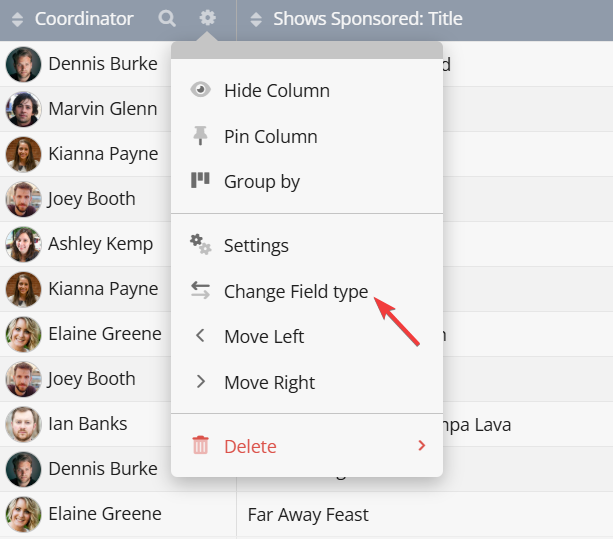
You can change a Field’s type by clicking the Field type icon in its settings. Field settings can be accessed from the App settings page, where all Fields are listed, or from any table in the workspace through the Field’s dropdown menu (available to admins).

From the dropdown, you can either open the Field settings or select Change Field type directly, without navigating to the settings page first.
A dialog will then open showing you the current Field type and the possible Field types the Field can be converted to.

Conversion Process
Before starting a conversion, pending field edits are saved first. The system validates existing data for compatibility with the target type and lists invalid values when possible.
Once the values are reviewed, the conversion will be scheduled and will run in the background.
There are certain rules/restrictions when a conversion is in process:
- Only one conversion can run per App at a time.
- Apps with active conversions cannot be deleted.
- Primary fields may only convert to other primary-compatible Field types.
- Certain conversions remove invalid values (e.g., invalid email, non-numeric text etc.).
These are the available conversion options, notes have been added when needed to describe the formatting and things to take in consideration for that specific conversion.
| From | To | Notes |
|---|---|---|
| Text | Select |
You can select a delimiter if the text contains multiple items. If a delimiter is selected, multiple choice will be enabled automatically. If all records are empty, two placeholder items (e.g. “Item 1”, “Item 2”) will be created. |
| Text | User |
Exact matches are checked first, if none are found, approximate matches are used. If multiple users share the same name, all matching users will be selected. |
| Text | Role | Follows the same process used for Text → Link To User. |
| Text | Multiline Text | - |
| Text |
All values will be validated as email addresses before conversion starts. Any invalid values will be listed for review. During conversion, invalid values will be removed. |
|
| Text | Web URL | All values will be validated as URLs. Invalid values will be removed during conversion. |
| Text | Number |
You can select the decimal separator and the number of decimal places. All non-numeric characters will be removed before conversion. If multiple numbers exist within the text, only the first one will be used. If no numbers are found, the value will be removed. |
| Text | Rating |
Follows the process done for Text → Number. Values in this case will be interpreted as numbers between 0 and 10. The largest value found in the field will determine the rating field’s maximum range. |
| Text | Tick Box |
You can define which text value should be interpreted as "true" (e.g., Yes, True, Ticked, 1). |
| Text | Phone |
Phone numbers and tags will be extracted automatically. Extra spaces, brackets, dashes, and formatting characters will be removed. If multiple numbers exist, they will be assumed to be separated by commas, pipes, or slashes. Tags must appear before the number in the format < tag > : < number >. |
| Text |
Date Date Time Date Range |
You can select the date format. Any invalid date values will be listed before conversion. If the data uses slashes or dashes inconsistently, both variations will be tried automatically. For Date Time and Range, you can also select the timezone. Both 12-hour and 24-hour time formats will be recognized during conversion. |
| Web URL | Text | - |
| Text | - | |
| Select / User / Role | Text | When multiple values are selected, the values will be joined using a delimiter. |
| Multiline Text | Text | - |
| Number / Rating | Text | - |
| Tick Box | Text |
You can define the text that should appear for true and false values. Records with no existing value will be treated as false. |
| Phone | Text | - |
| Date | Text | - |
| Date Time | Text | - |
| Date Range | Text | - |
| User / Role | Dropdown | - |
| Number | Rating |
Values will be rounded to the nearest whole number and limited to the range 0–10. |
| Rating | Number | - |
| Rating | Select |
Select options will be created for all possible rating values. Values above the allowed range will be set to the maximum, values below 0 will be set to 0. |
| Tick Box | Select | The same logic as Tick Box → Text applies. |