
Files Widget
The Files widget provides a centralized view of all files attached to records in a single App. It displays file metadata, supports instant search, and allows filtering by upload date — making it ideal for document hubs, asset libraries, or compliance archives.
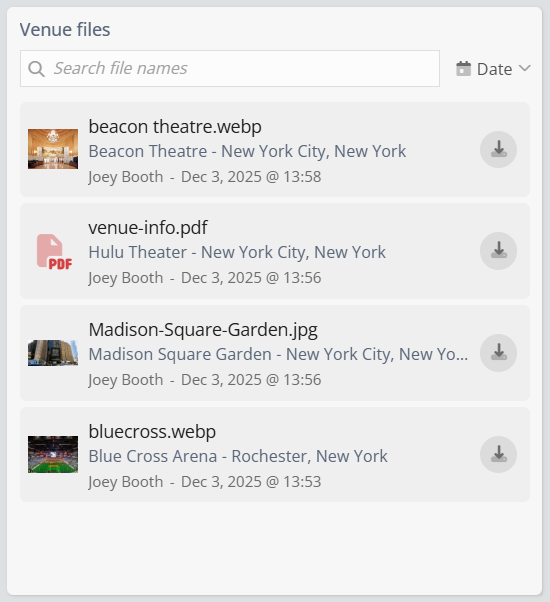
Adding the Files Widget
- Navigate to your desired Dashboard.
- Click Add Widget in the Dashboard drop down.
- Select Files from the widget list.
- Choose the App to monitor (only one App can be selected).
- Click Done to add the widget.
Tip: Use the Files widget on project dashboards to give team members quick access to contracts, designs, or reports — no need to open individual records.
Files Widget Settings
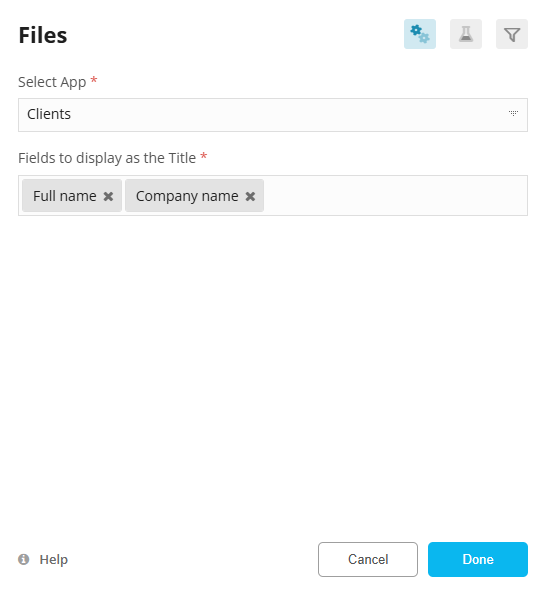
| Setting | Description |
|---|---|
| Select App (Required) | Choose the single App from which to pull files. Only one App can be selected per widget. |
| Record Title Field | Select a text-based field (e.g., Title, Name, Document ID) to display as the record name next to each file. |